
2025
Buildmacro
⚡Background
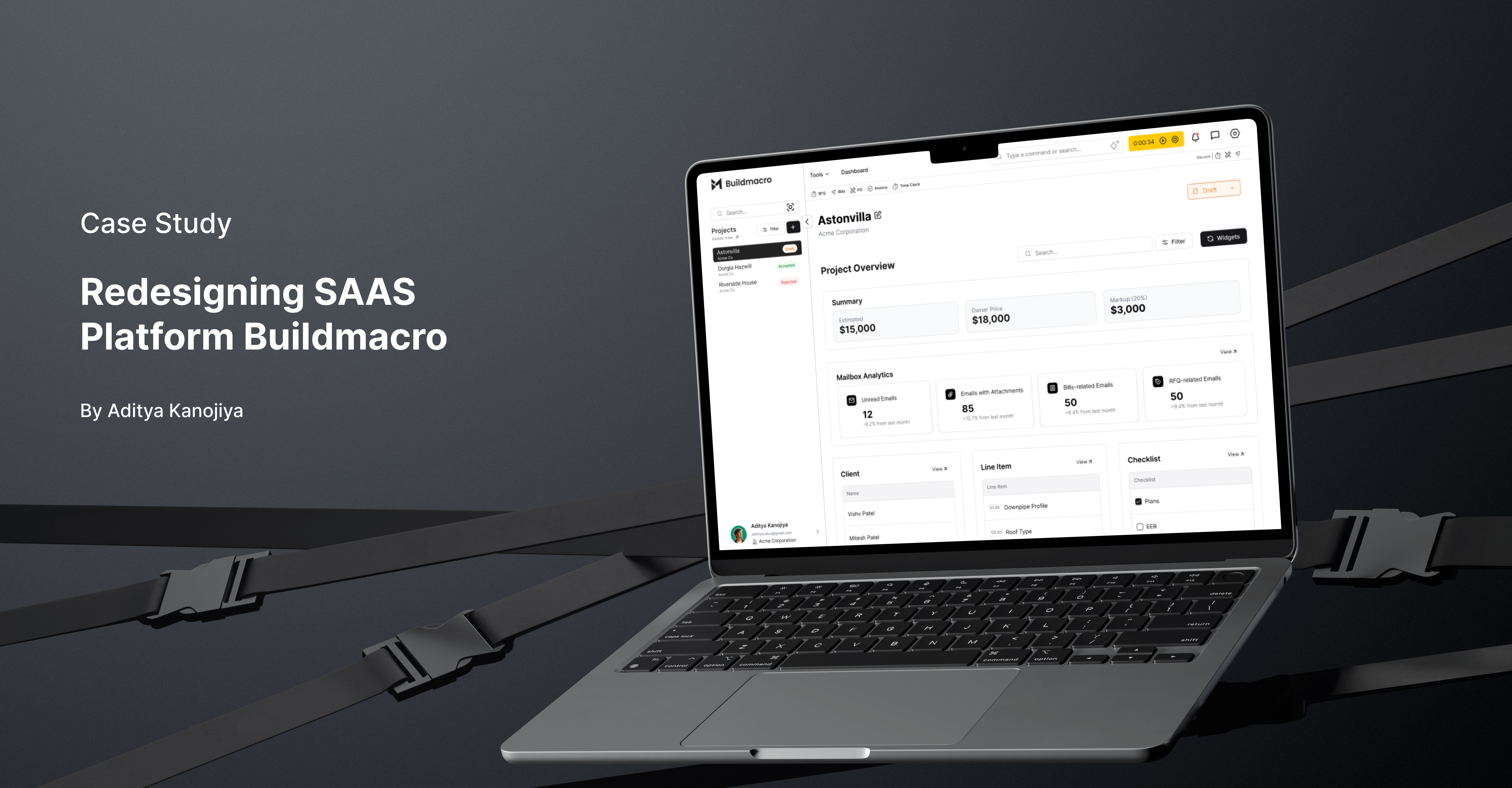
BuildMacro is a construction management SaaS platform designed to streamline project oversight, financial workflows, and collaboration across clients, contractors, and builders. As a UI/UX Designer, the focus was on redesigning the platform to solve usability challenges, simplify workflows, and integrate AI automation for enhanced efficiency.
🚨Problem Statement
The existing BuildMacro platform faced challenges that reduced usability:
Complex onboarding with overwhelming forms.
Cluttered dashboards and poor navigation.
Limited collaboration tools for multi-stakeholder projects.
Inefficient table designs with no bulk or customizable actions.
Weak document, cost, and template management systems.
Lack of automation and AI-driven features.
These gaps created friction, wasted time, and hindered adoption.
📊User Research & Discovery
User Research
Conducted interviews and internal feedback sessions.
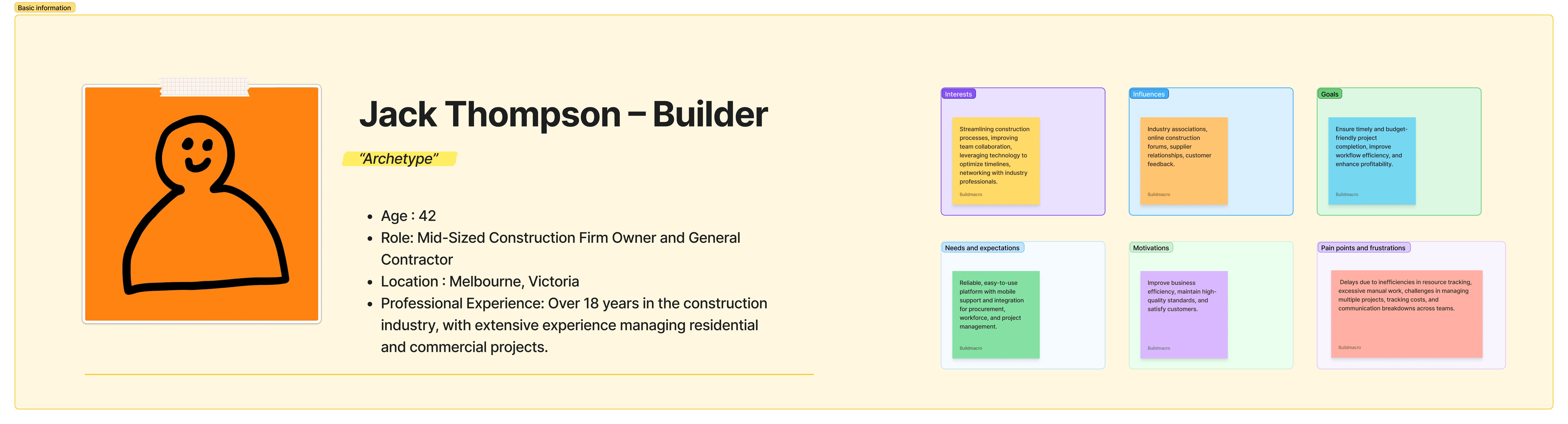
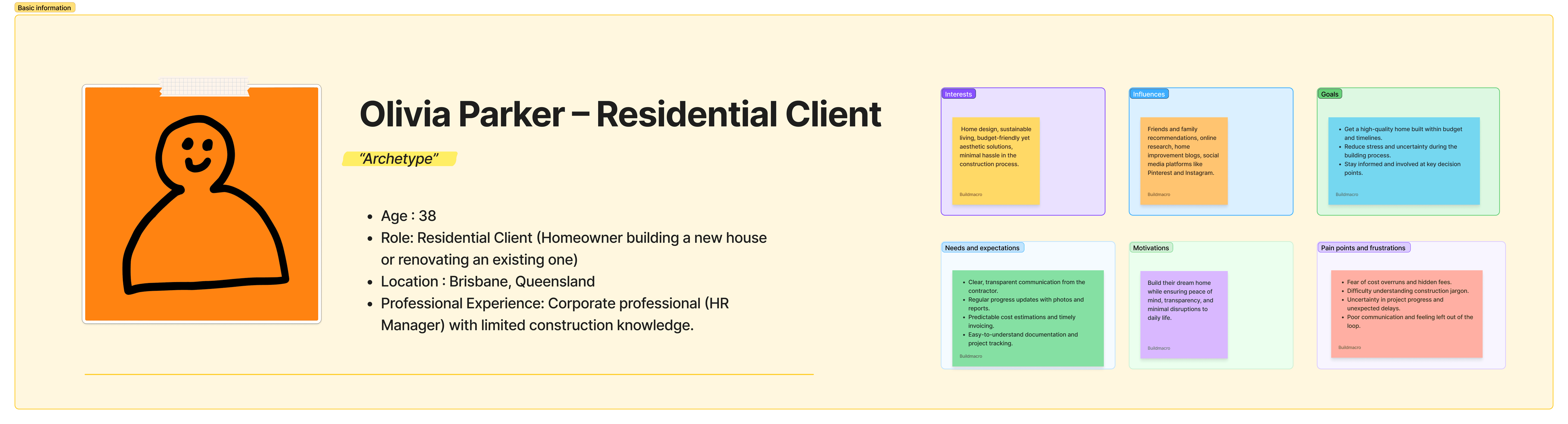
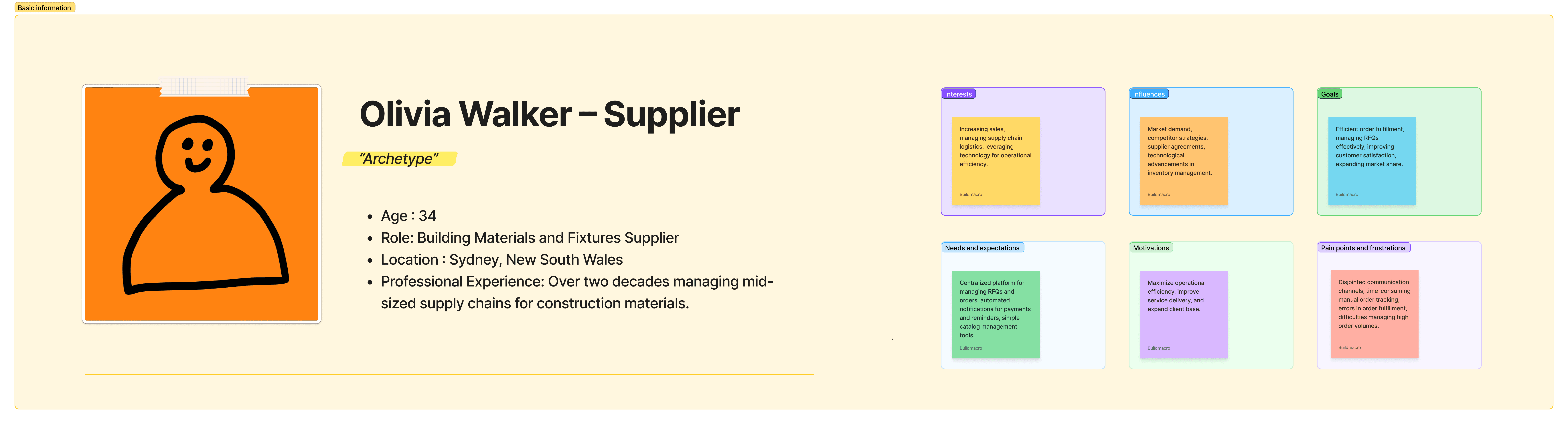
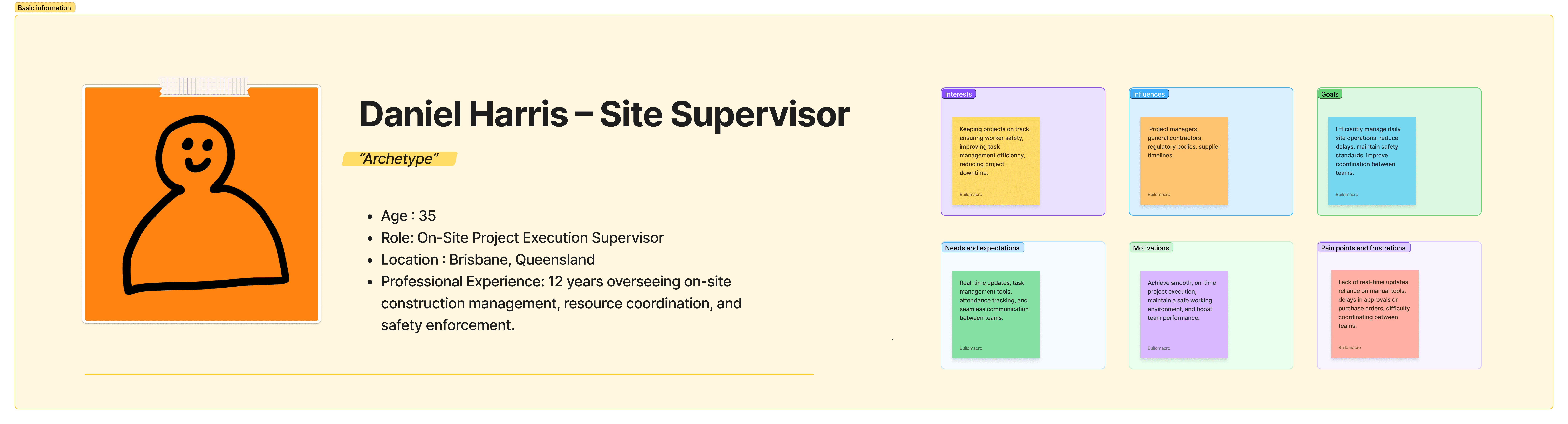
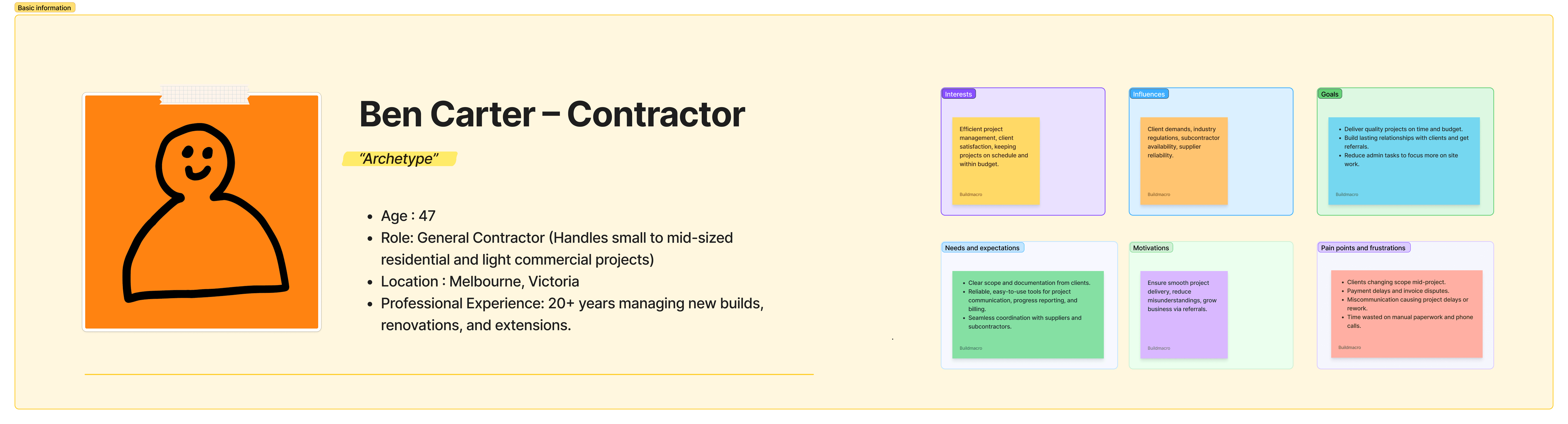
Developed personas for clients, contractors/suppliers, and builders.
Observed workflows and identified repetitive tasks.
Competitive Analysis
Benchmarked competitors like Buildxact, Procore, and Buildertrend.
Noted strengths: clear dashboards, collaboration tools, template systems.
Identified gaps BuildMacro could address with AI-powered features.
Insights
Users needed role-specific dashboards.
Automation could replace manual estimations and approvals.
Navigation hierarchy required simplification.
🎯Design Goals
Reduce friction in onboarding and navigation.
Improve collaboration across stakeholders.
Enhance customization (dashboards, tables, templates).
Integrate AI-driven workflows (takeoffs, billing, approvals).
Maintain a scalable and consistent design system.
Platform Onboarding
Old Onboarding
Challenge was to not creating the confusion and stress for the user by him/ her in the long form But I need to have the minimal information that need the so much info that required so much form

How I Solved Onboarding Flow
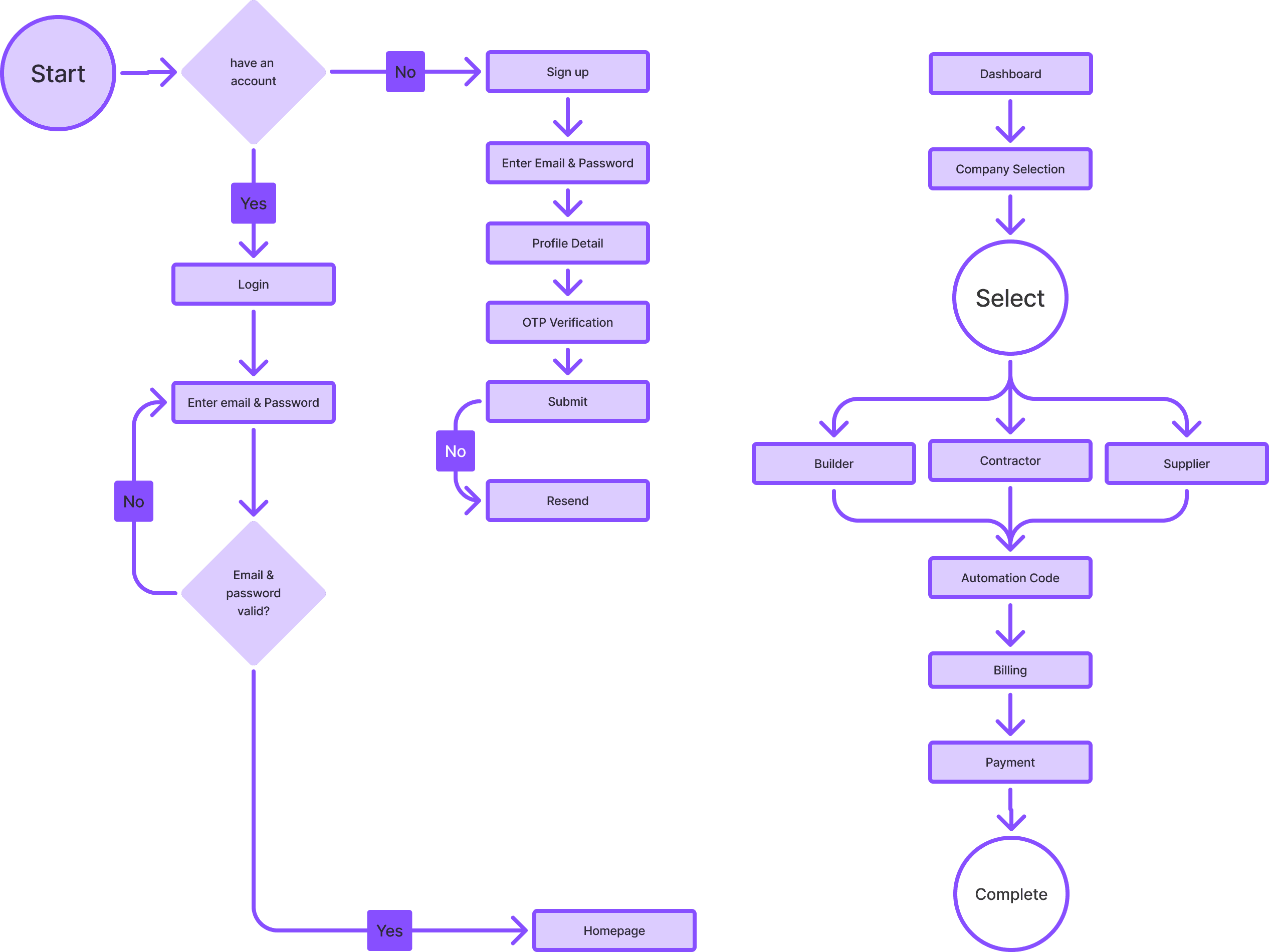
Divided the whole Onboarding in 2 parts.
Platform onboarding
Company creation (separate)
Problem in the Current Onboarding Experience
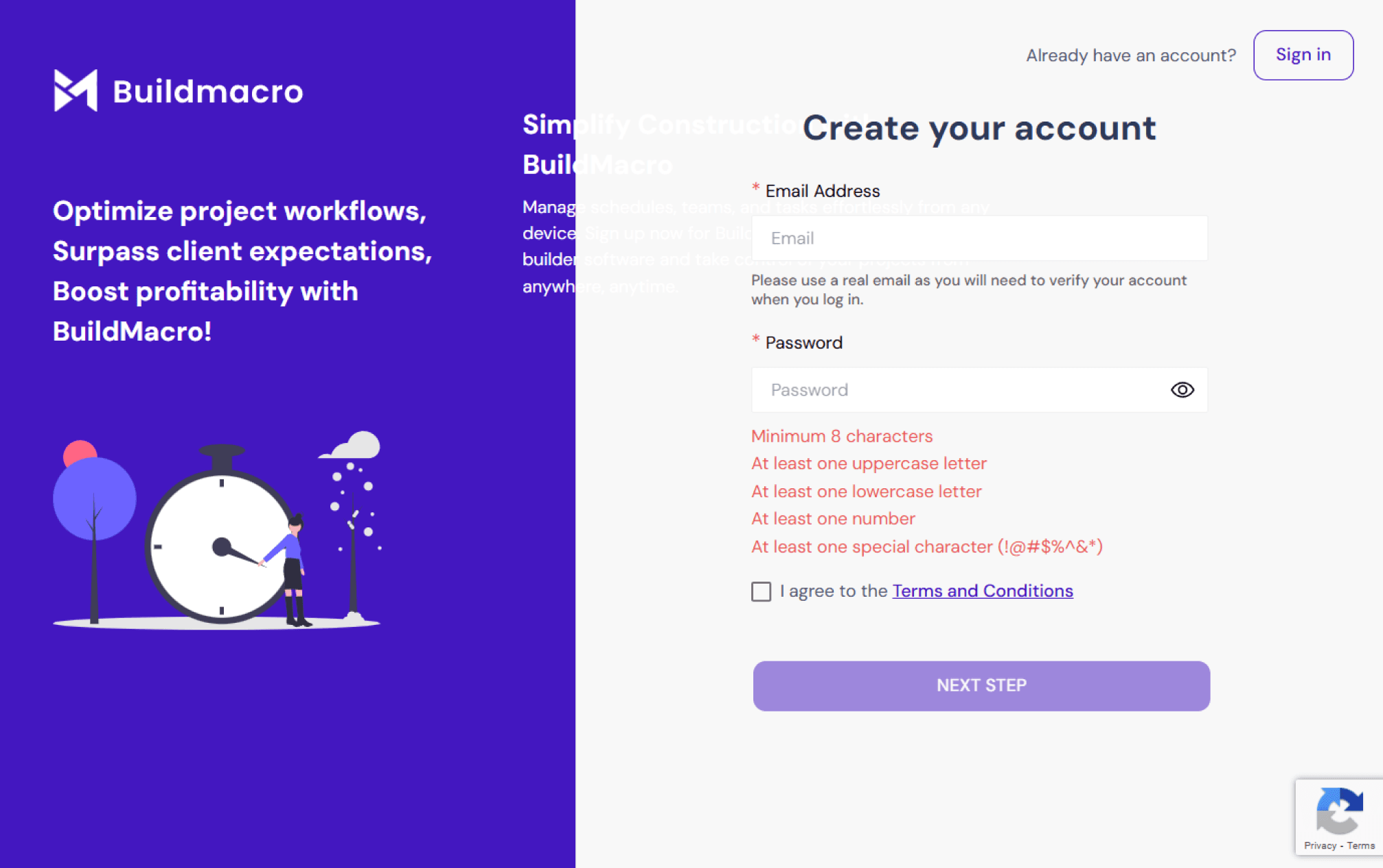
The current onboarding experience lacks clarity and structure:
No Stepper is used, which leaves users unsure about how many steps are involved or how long the process will take.
Unnecessary information is shown upfront, such as detailed password rules and placeholder descriptions, which clutters the UI and overwhelms the user.
Poor use of space due to repetitive or verbose field instructions reduces focus and usability.
These issues can cause confusion, frustration, and potential drop-offs during account creation.
My Solution to Improve Onboarding Experience
To address the issues in the current onboarding experience, I implemented the following improvements:
Introduced a Stepper to clearly indicate the number of steps in the process, helping users understand where they are and what’s next.
Simplified the UI by removing unnecessary placeholder descriptions and reducing visual noise.
Displayed password requirements dynamically, only when users interact with the password field—keeping the form clean and focused.
Enhanced form structure to guide users smoothly, reducing friction and improving overall user satisfaction.
This approach makes onboarding more intuitive, organized, and user-friendly.

Old Dashboard Problems
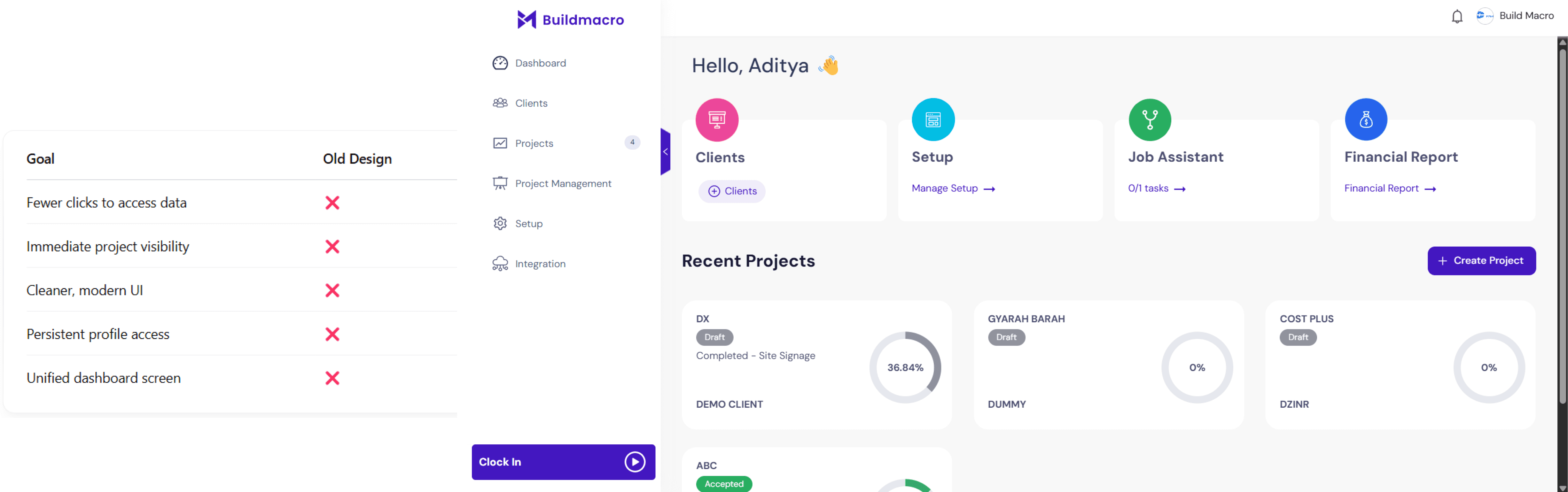
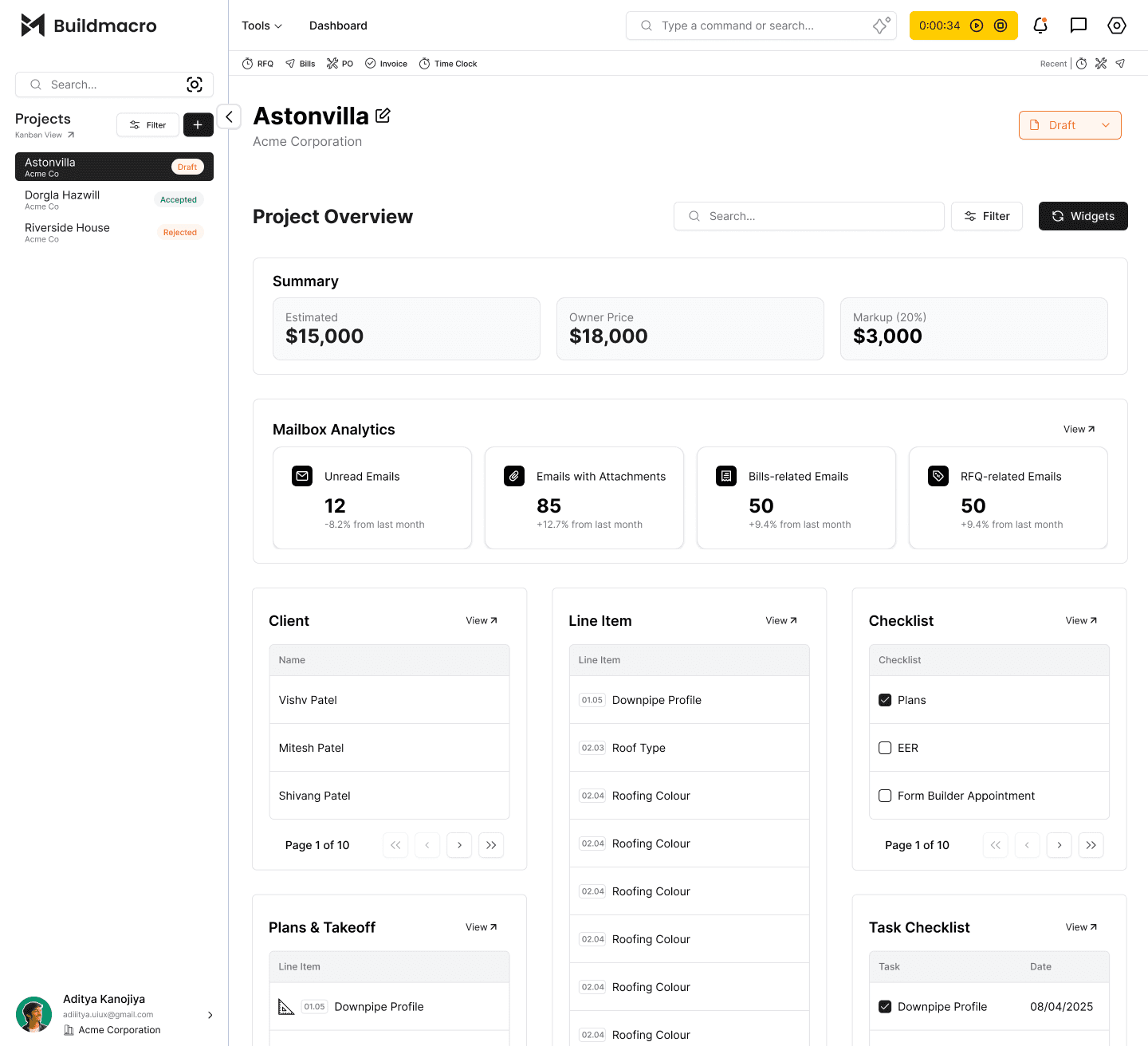
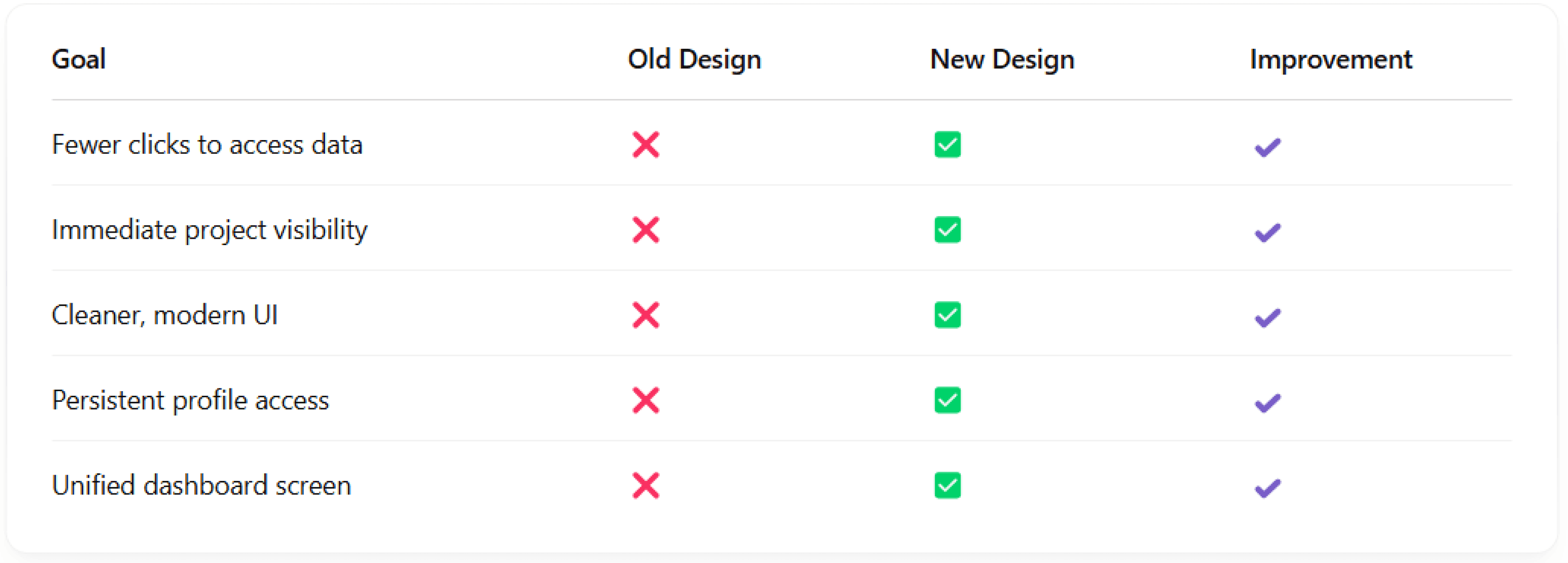
Changes Made & Why
1. Sidebar → Direct Project Display
Old Design: Projects are nested under a sidebar menu (Dashboard → Projects).
New Design: Projects are shown directly on the main screen.
Why:
Reduces Clicks: No more clicking through the hierarchy.
Faster Access: Users can see all projects immediately after logging in.
Better Visibility: The main goal—project management—is now front and center.
2. Dashboard Menu Shifted from Sidebar to Navbar
Old Design: Sidebar hosts main navigation including Dashboard.
New Design: Core navigation (Dashboard, Reports, etc.) is shifted to a top navbar.
Why:
Cleaner Layout: Frees up horizontal space and allows more content to be shown at once.
Improved Focus: Navbar menus are more accessible and easier to scan at a glance.
Mobile-Friendly: Better adaptability for responsive/mobile designs.
3. Profile Tab Relocated to Bottom Left
Old Design: Profile was in settings menu and not have been part of the dashboard.
New Design: A dedicated area in the bottom-left corner shows the user profile.
Why:
Better User Orientation: Gives users an easy place to look for profile/account settings.
Persistent Access: Keeps user-related actions always visible but non-intrusive.
Improved Hierarchy: Separates action-oriented items (top nav) from passive/profile info.
4. One-Page Data Overview
Old Design: Requires multiple clicks to navigate through sections.
New Design: Everything important is accessible on one screen.
Why:
Efficient Workflow: Ideal for power users who want to quickly overview and take action.
Reduced Cognitive Load: No need to remember where things are hidden in nested menus.
Better for Monitoring: Especially useful for roles that oversee multiple projects or teams.
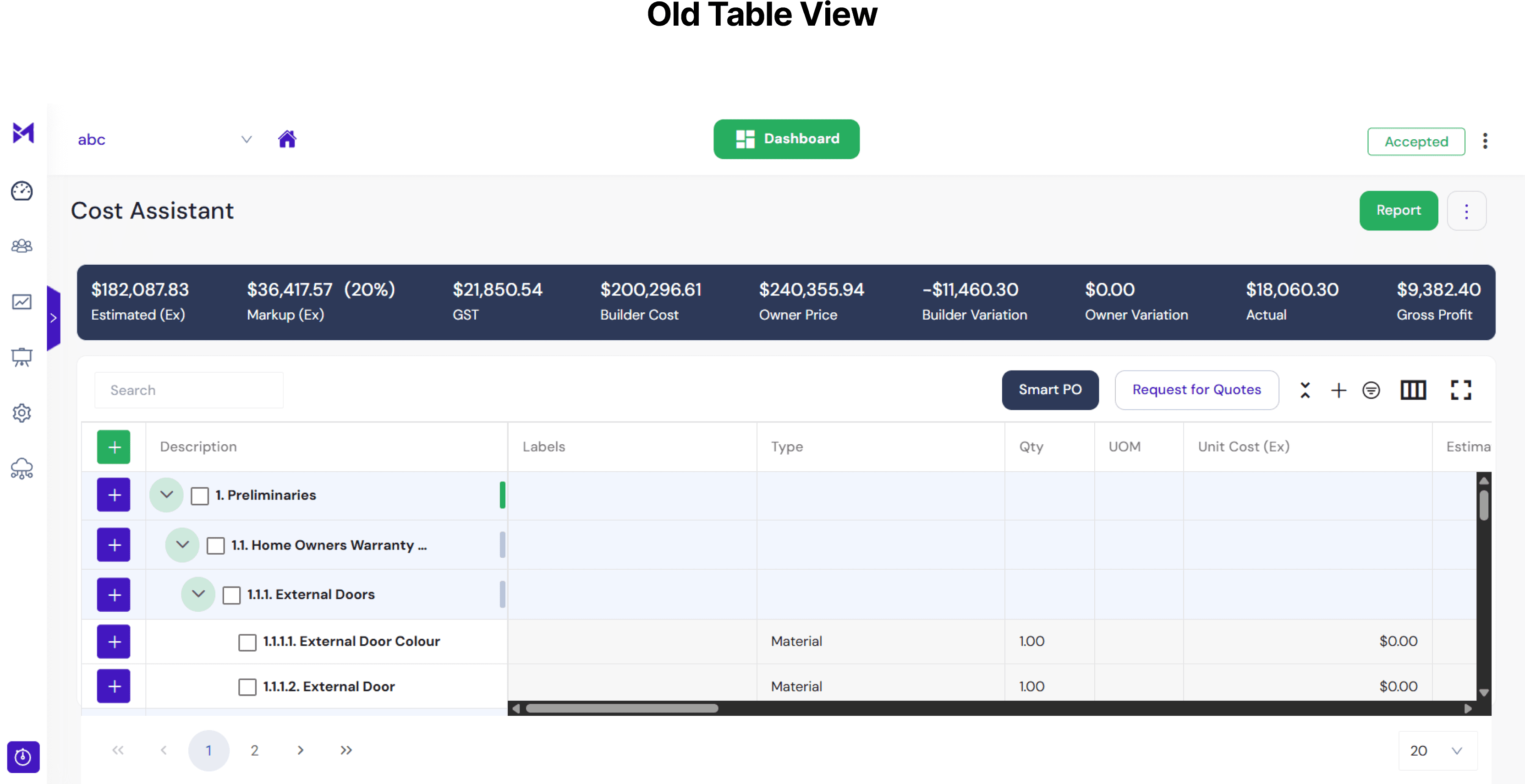
Challenges in Table Design
Problems
No option to drag and reorder rows
Plus icon and checkbox were always visible and looked unprofessional
No bulk addition or deletion functionality
No way to pin frequently used feature buttons
No quick access to frequent settings or actions
Lack of customization for table toolset
Empty states weren't helpful or informative
Adding a new row wasn't clearly placed or discoverable
Users were limited to only one data representation (table view), which restricted usability and flexibility.
Solution
Added a drag icon that appears on hover, allowing users to reorder rows easily
Made plus icon and checkbox appear only on hover for a cleaner, modern interface
Introduced bulk add/delete options to handle multiple rows efficiently
Added feature pinning via the Settings menu, enabling users to keep tools handy
Integrated a Settings menu with pinning, letting users customize their quick-access toolbar
Introduced a Settings panel where users can manage and pin features they need most
Designed meaningful empty states with icons and tips to guide users when no data is present
Made the add row control more intuitive by positioning it contextually within the row area
Introduced multiple data views (Table, Kanban, Timeline, Calendar, Dashboard, etc.) to allow users to visualize and interact with data in the way that best suits their workflow.

🧭Design Process
User Flows: Mapped onboarding, settings, and task workflows.
Wireframes: Built low-fidelity screens to validate navigation.
UI Design: Created high-fidelity prototypes in Figma using Shadcn components.
Testing: Ran usability tests with internal teams.
Iteration: Refined dashboards, settings pop-ups, and automation flows.
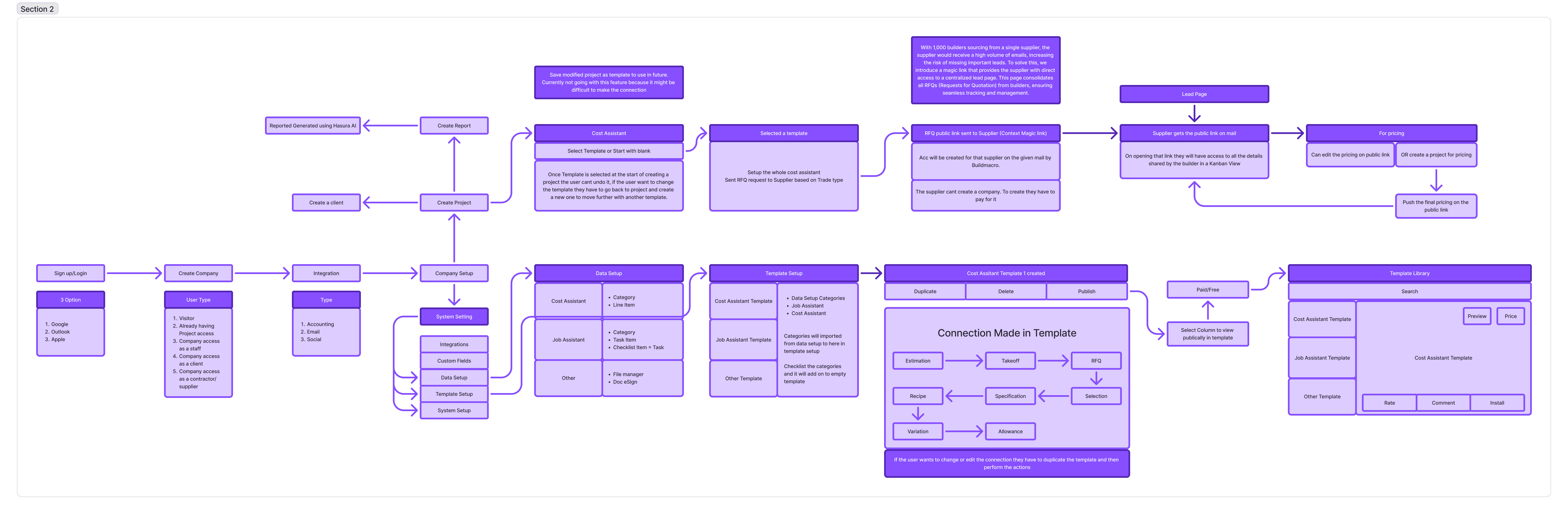
🎨Solution & Final Design
Dashboard & Widgets – Customizable, drag-and-drop for key metrics.
Onboarding – Split into platform setup + company creation to reduce overload.
Table Module – Drag-and-drop rows, bulk actions, quick toolset, and better empty states.
System Settings – Redesigned as a full-screen popup with memory, so users don’t lose context.
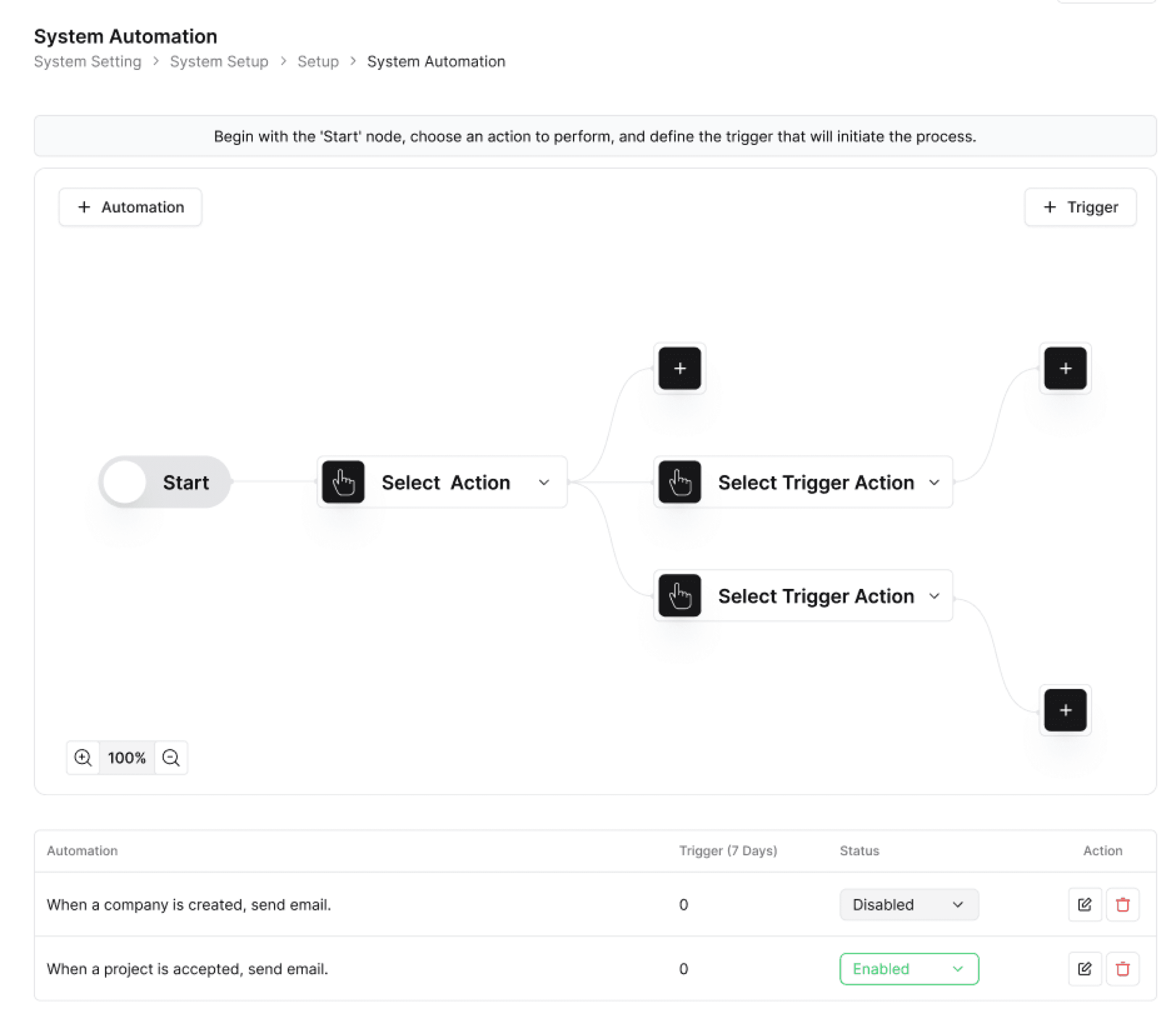
Automation (AI Workflows) – Trigger-based automations for tasks, notifications, and reports.
Plans & Takeoffs – Added revision history and plan comparison.
RFI Module – Linked RFIs with approval workflows (AOP).
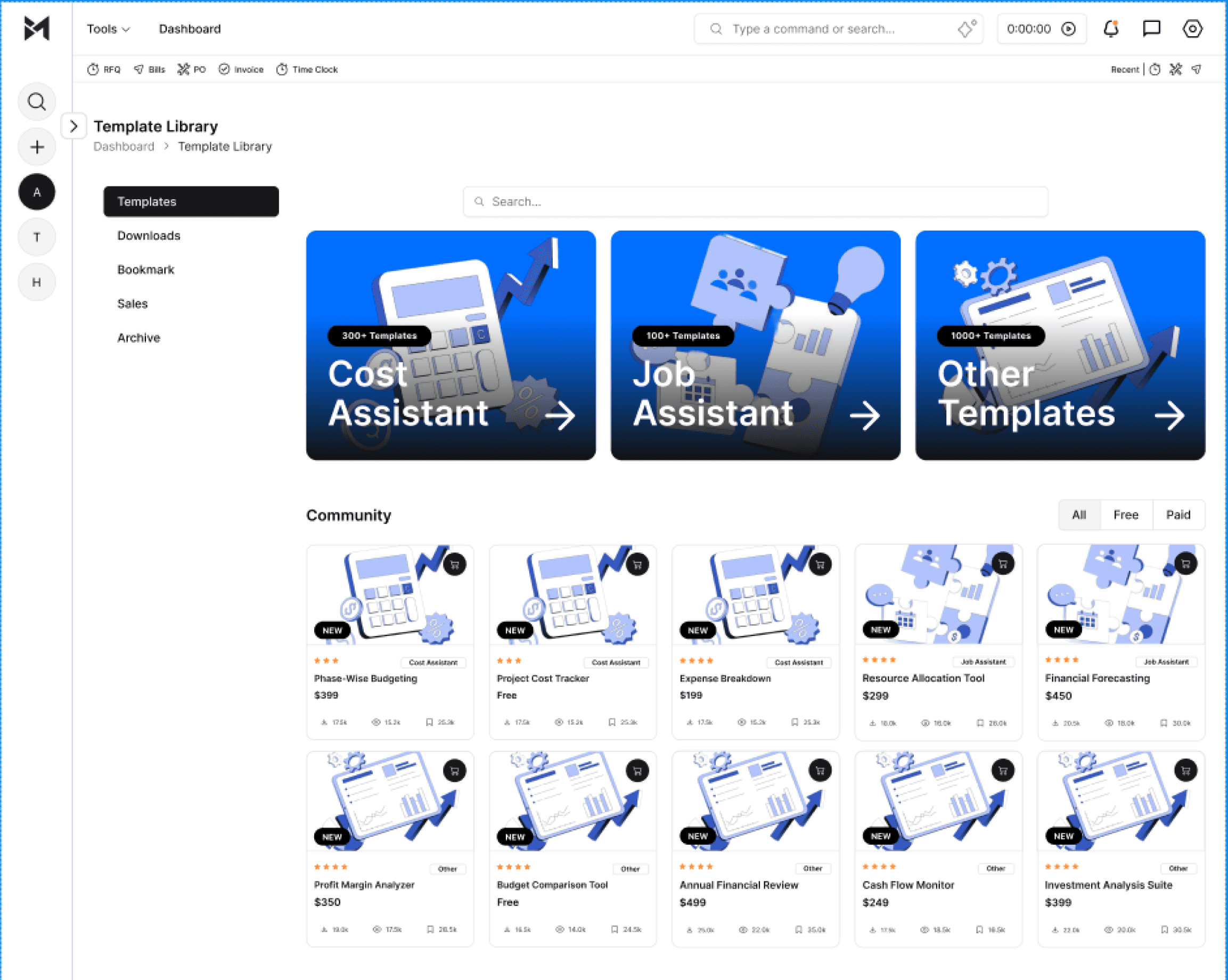
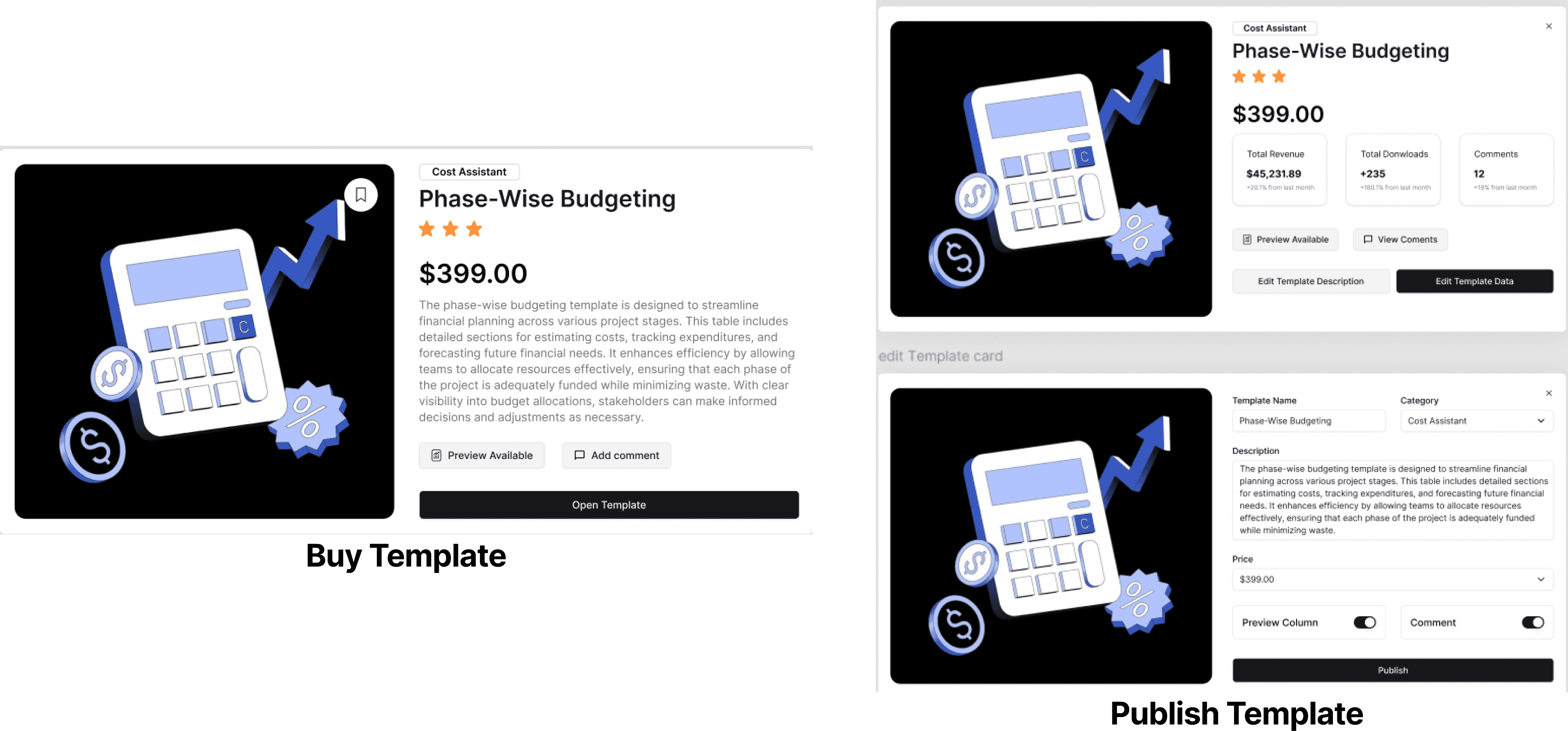
Template Library – Community-driven, supports free and paid templates.
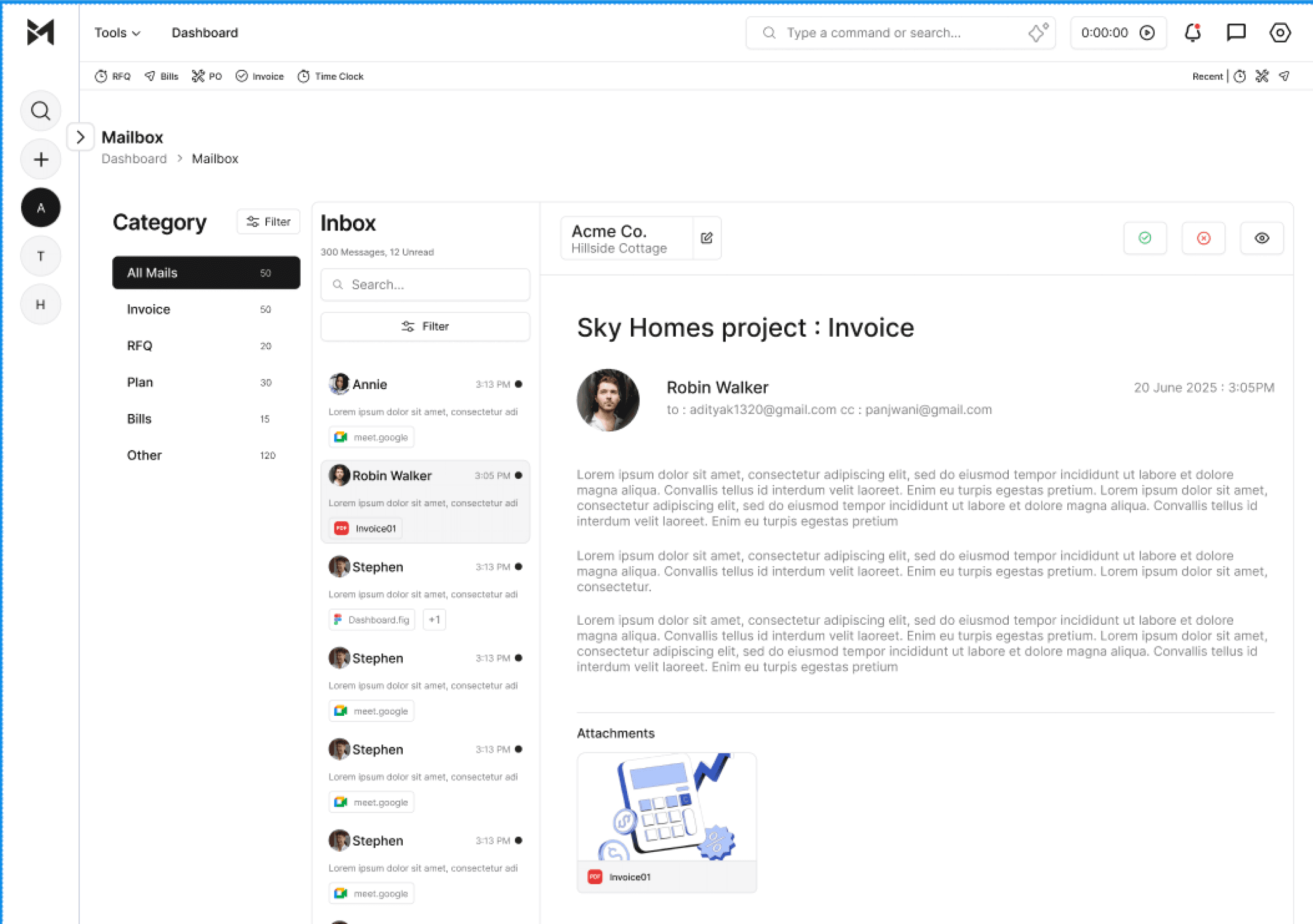
Mailbox – Unified email management for invoices, RFQs, and bills.
Social Analytics – Post scheduling, CRM lead tracking, engagement data.
AI Bill Upload – Upload bills, auto-categorized via AI.
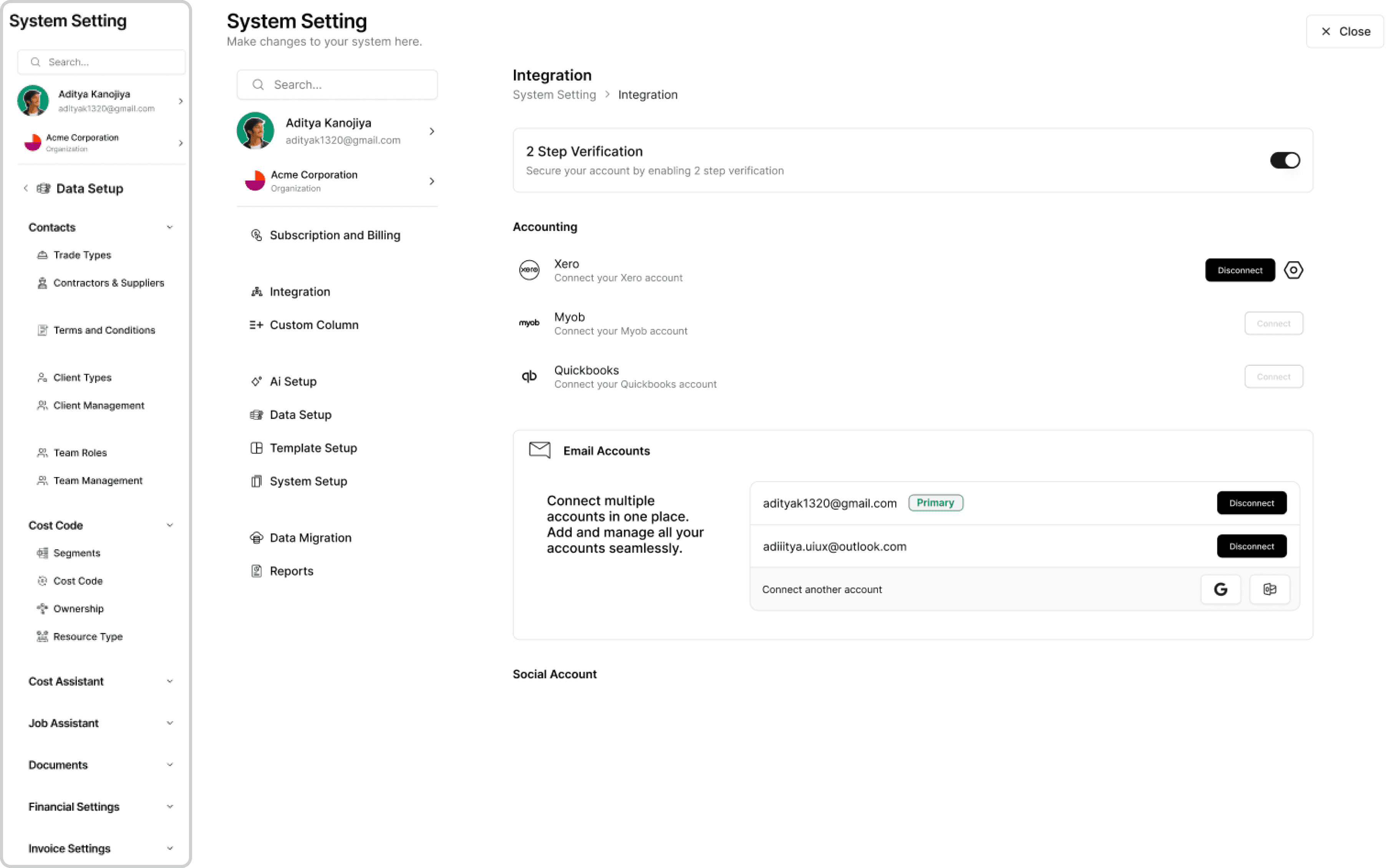
System Setting
Problem: Settings were scattered across multiple pages. Users had to leave their current task to access them, then manually navigate back, which interrupted their workflow.
Research: Mapped how often users switch between configuration tasks and active project work. Identified the pain of losing context when jumping in and out of settings.
Solution: One-page System Setting Hub. Introduced a full-screen pop-up for System Settings. This opens on top of the current page without forcing the user to navigate away.The pop-up remembers where the user was last working inside the settings, so when reopened, it resumes at the same section.
UX Outcome: Users can configure data or templates without losing their place. Closing the pop-up brings them right back to where they left off in their main workflow. This preserves context, reduces repetitive navigation, and improves productivity.
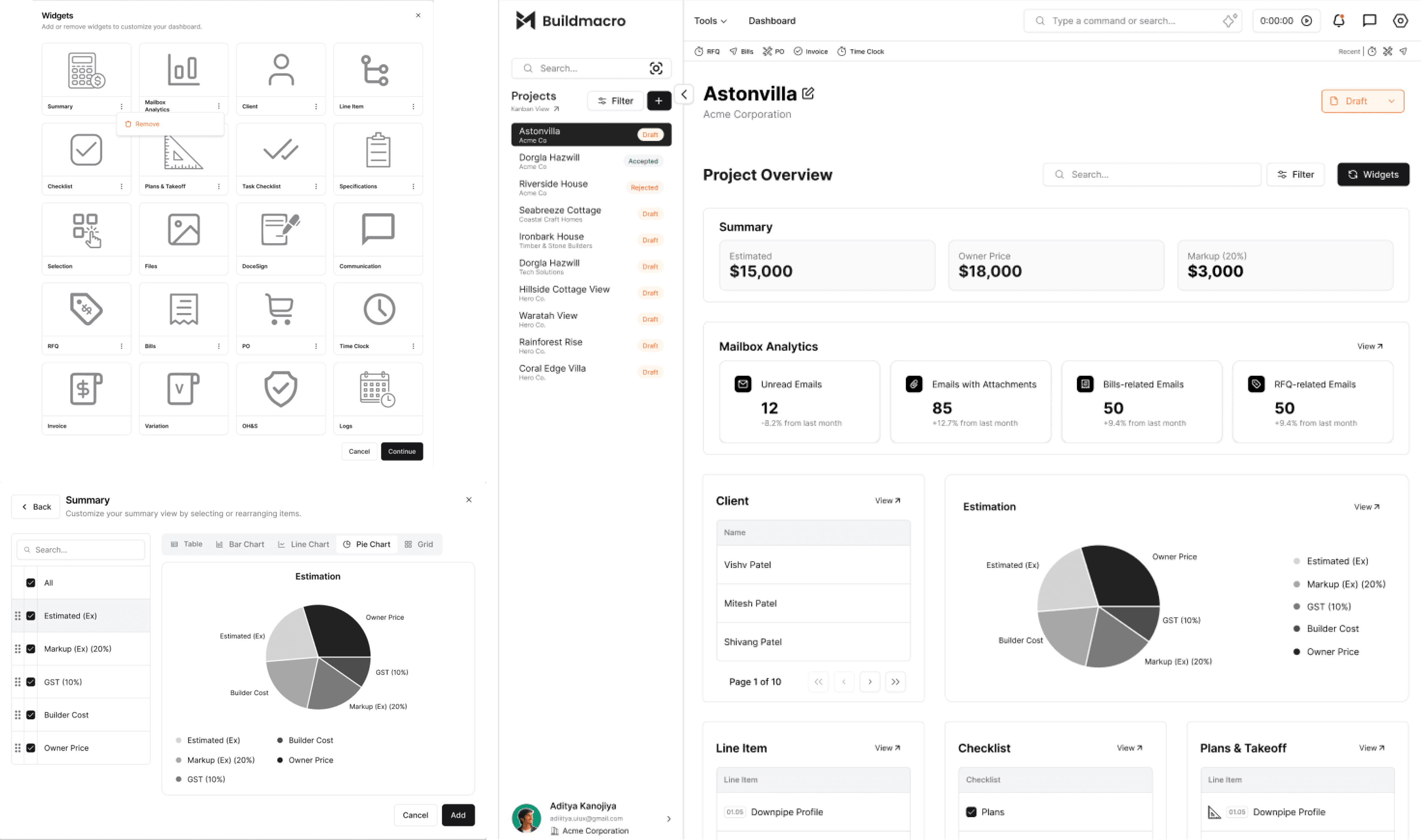
Widgets
Problem: No way to see important data at a glance
Research: Dashboard personalization trends
Solution: Add widgets → select data & columns → place on dashboard
UX Outcome: Clearer insights, easy custom reporting
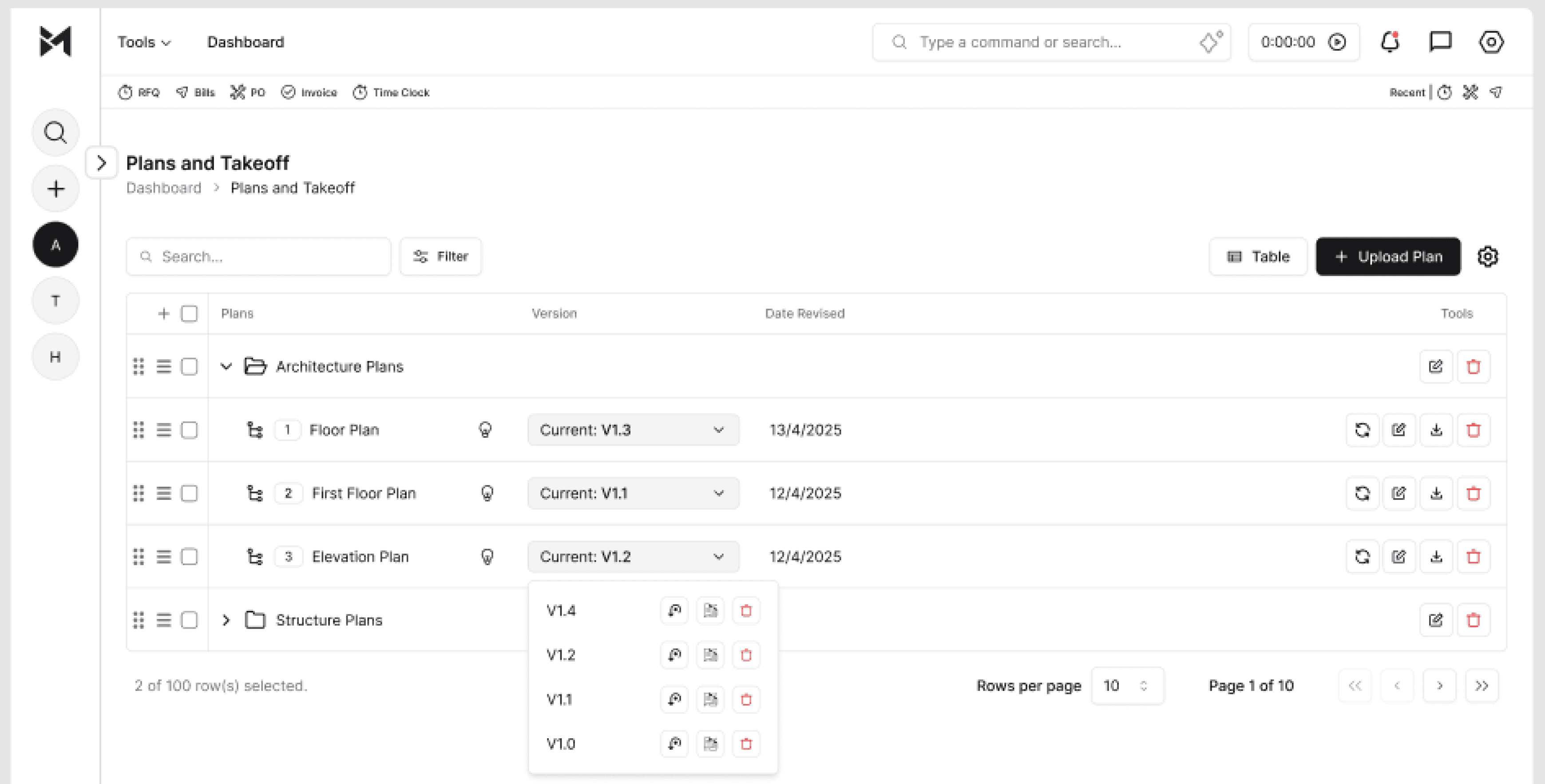
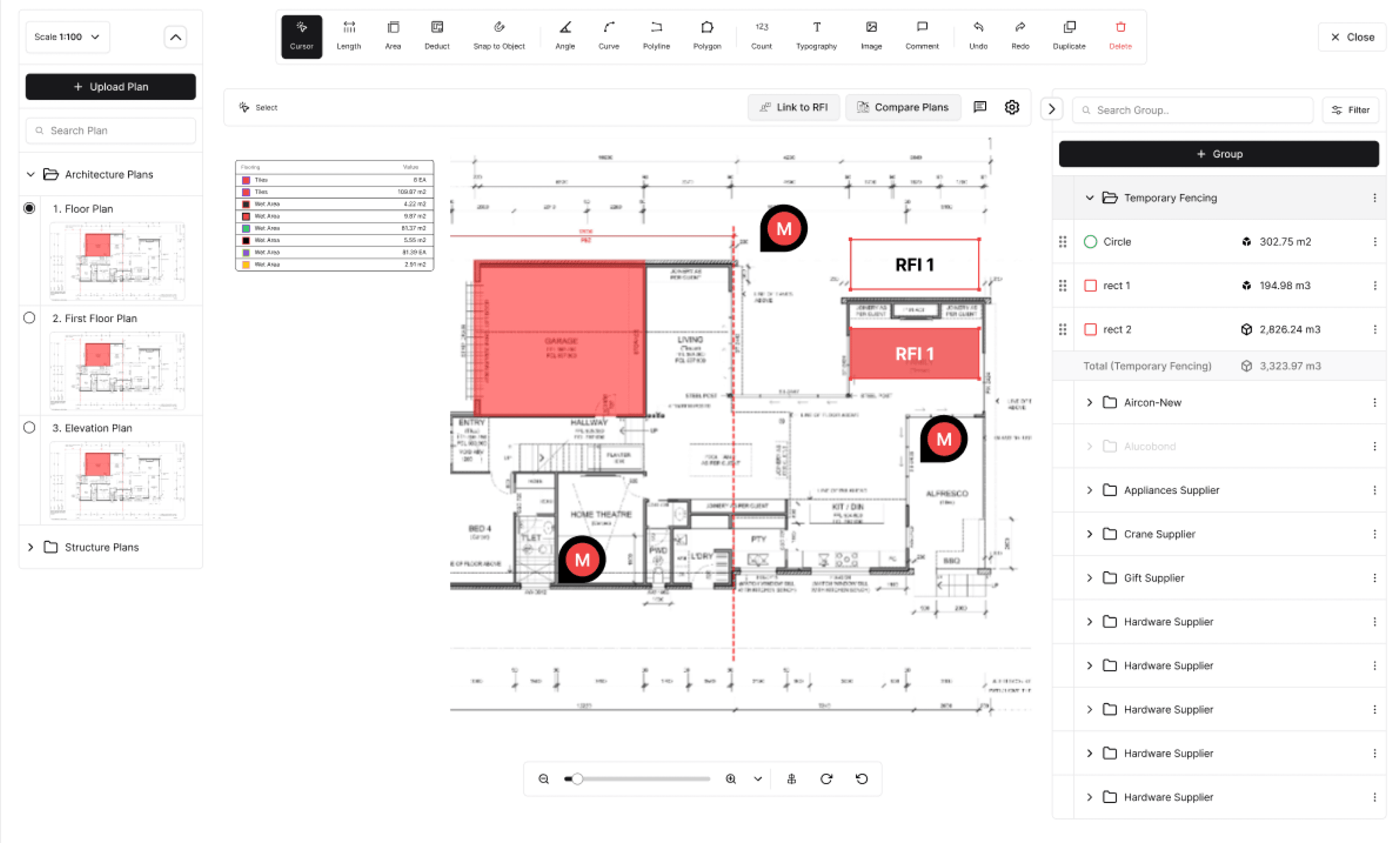
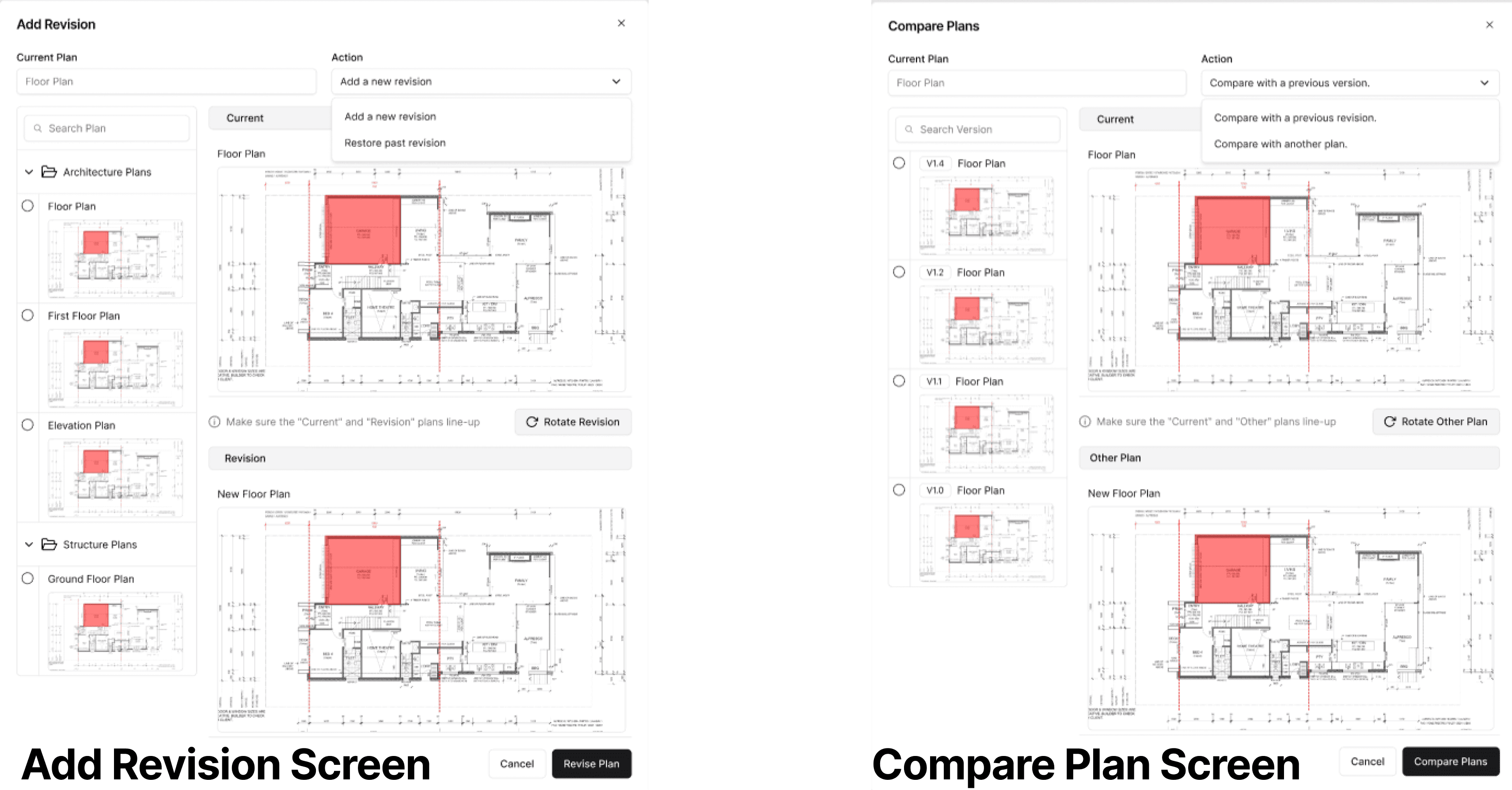
Plans & Takeoff
Problem: Needed better markup, plan versioning
Research: Spoke to construction teams about site workflows
Solution: Added markups, takeoff tools, revision restore, plan compare (overlay)
UX Outcome: Accurate drawings, clear changes, faster planning
RFI Module
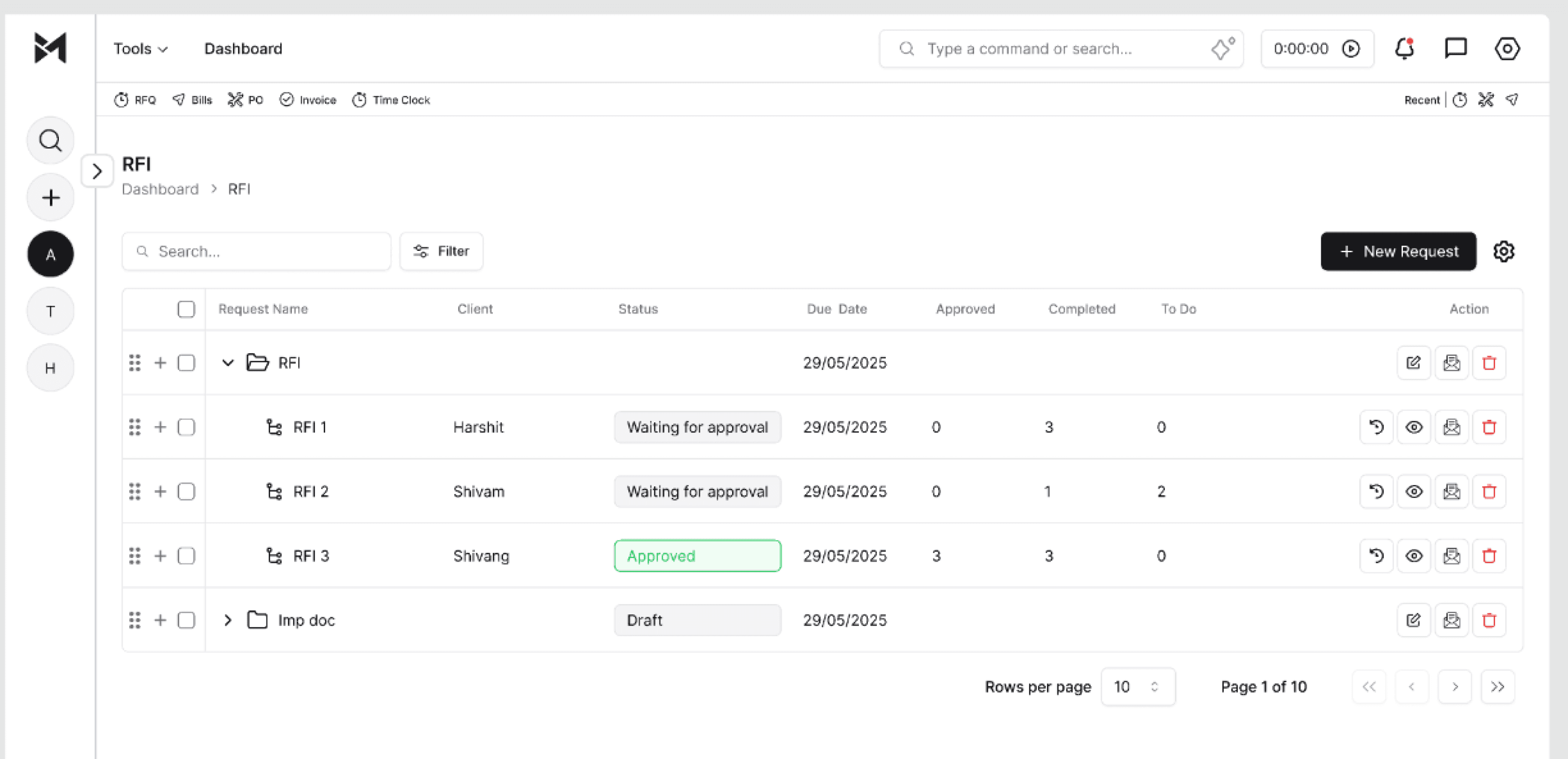
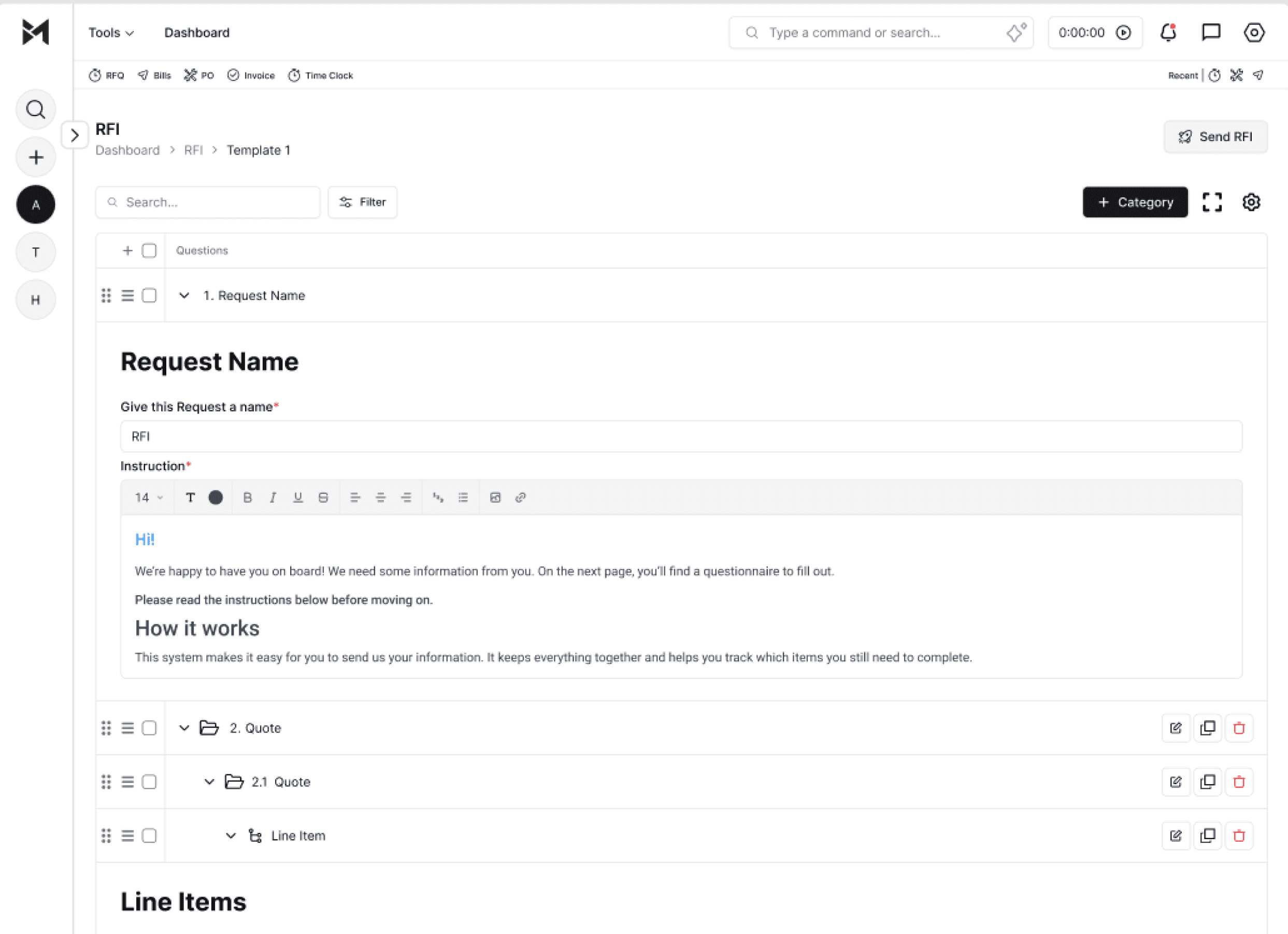
Problem: No clear RFI handling
Research: Studied how site teams send/track info
Solution: Clean form for RFIs with docs, status, line-item link
UX Outcome: Fewer delays, clear approvals, full traceability
Template Library
Problem: Users recreate similar docs manually
Research: Asked teams about repetitive tasks
Solution: Community Template Library — upload/share free & paid templates
UX Outcome: Saves time, easy download, community resource
Mailbox Module
Problem: Important docs lost in separate inboxes
Research: Mapped email workflows for finance & suppliers
Solution: Integrated Mailbox — view invoices, RFQs, receipts inside BuildMacro
UX Outcome: No switching apps, better document control
Social Analytics
Problem: Posting & tracking social media is scattered
Research: Benchmarked top social tools
Solution: Multi-platform posting, link accounts, schedule posts, view CRM stats (likes, leads)
UX Outcome: One place for posts & analytics — saves time

System Automation
Problem: Manual repetitive tasks (emails, SMS)
Research: Looked at automation triggers & best practices
Solution: AI workflows — add trigger points, e.g. auto email/SMS when project created
UX Outcome: Saves time, reduces errors, smoother ops
✅Results and Impact
Reduced clicks & steps: Simplified navigation saves time for users every day.
Cleaner layouts, faster workflows: Improved structure and page flow make tasks quicker to complete.
User-tested & feedback-driven: Multiple design iterations based on real user inputs.
Improved visual clarity & hierarchy: Easier to scan screens, better readability.
Improved visual Minimized user confusion: Clear forms, tooltips, and logical grouping of actions. & hierarchy: Easier to scan screens, better readability.
Context-preserving pop-ups: Users stay in their workflow without losing progress.
Modern, minimal UI: Consistent styling with Shadcn components for professional look.
Smart modules: Widgets, automation, and AI help reduce manual work.
Community-driven features: Template Library connects users for time-saving resources.
Future-ready architecture: System Settings, automation triggers, and upcoming mobile app planned.
Higher user satisfaction: Focused on real workflows to match daily tasks
Scalable design system: Easy to expand with new features & modules.
📚Learnings
Designing for enterprise SaaS requires balancing complex workflows with simplicity.
Modular onboarding reduces user overwhelm.
Pop-up based settings improved usability and task continuity.
Feedback loops and internal testing drive iterative improvements.